What is Taskify?
In today's fast-paced and dynamic business environment, effective project management is the
cornerstone of success. Projects can be complex, involving numerous tasks, team members, and
deadlines, making it essential to have a powerful and user-friendly tool to streamline the
process. This is where Taskify comes into play.
Get Support
If you need assistance or have any questions, our support team is here to help.
You can reach us for support by dropping email to:
- Email: support@chabrosloutions.com
We're available to assist you with any inquiries or issues you may encounter while using
Taskify.
Settings
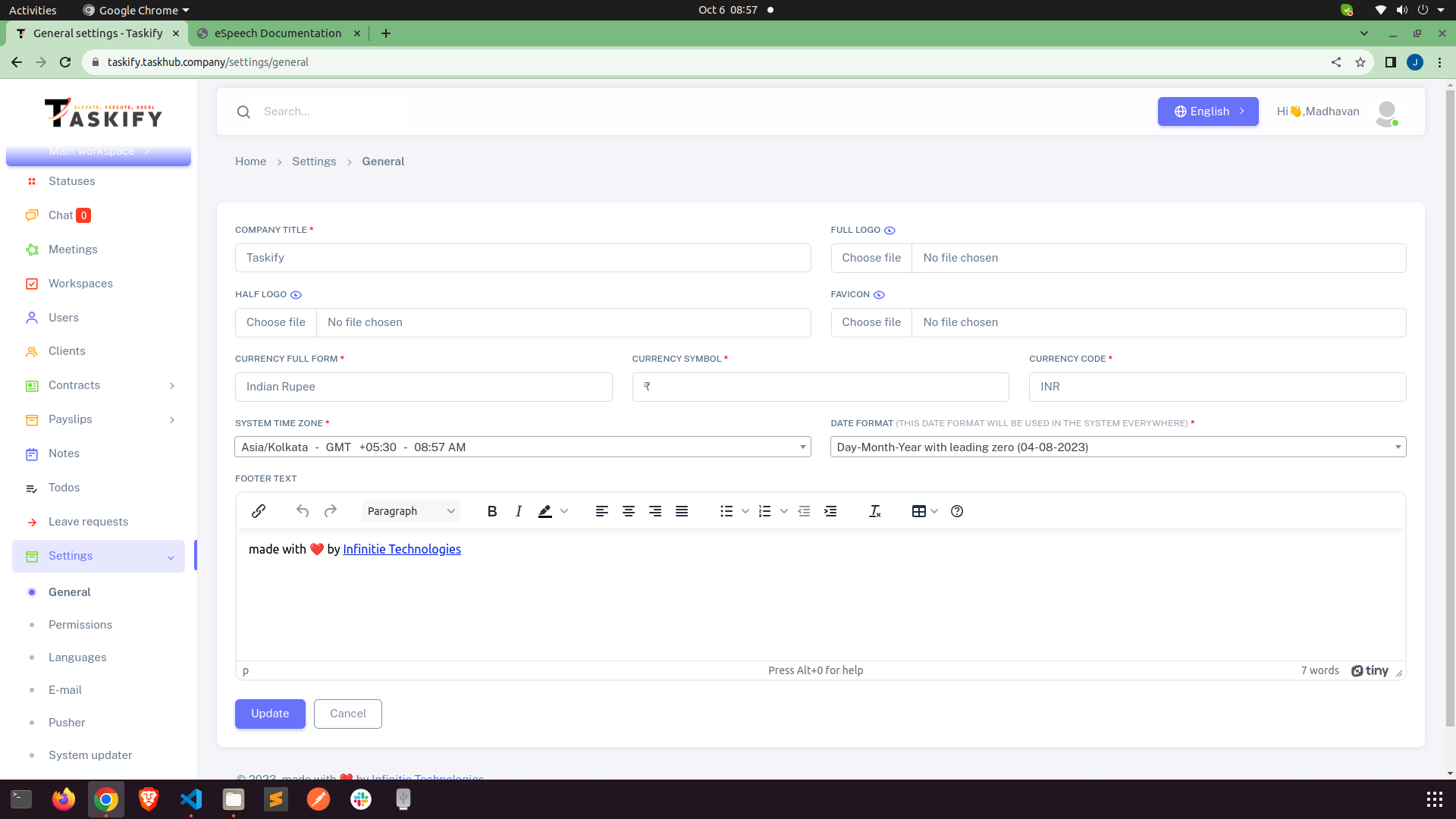
First Of all, we need to set general setting of app
Make sure to add Company Title and App URL
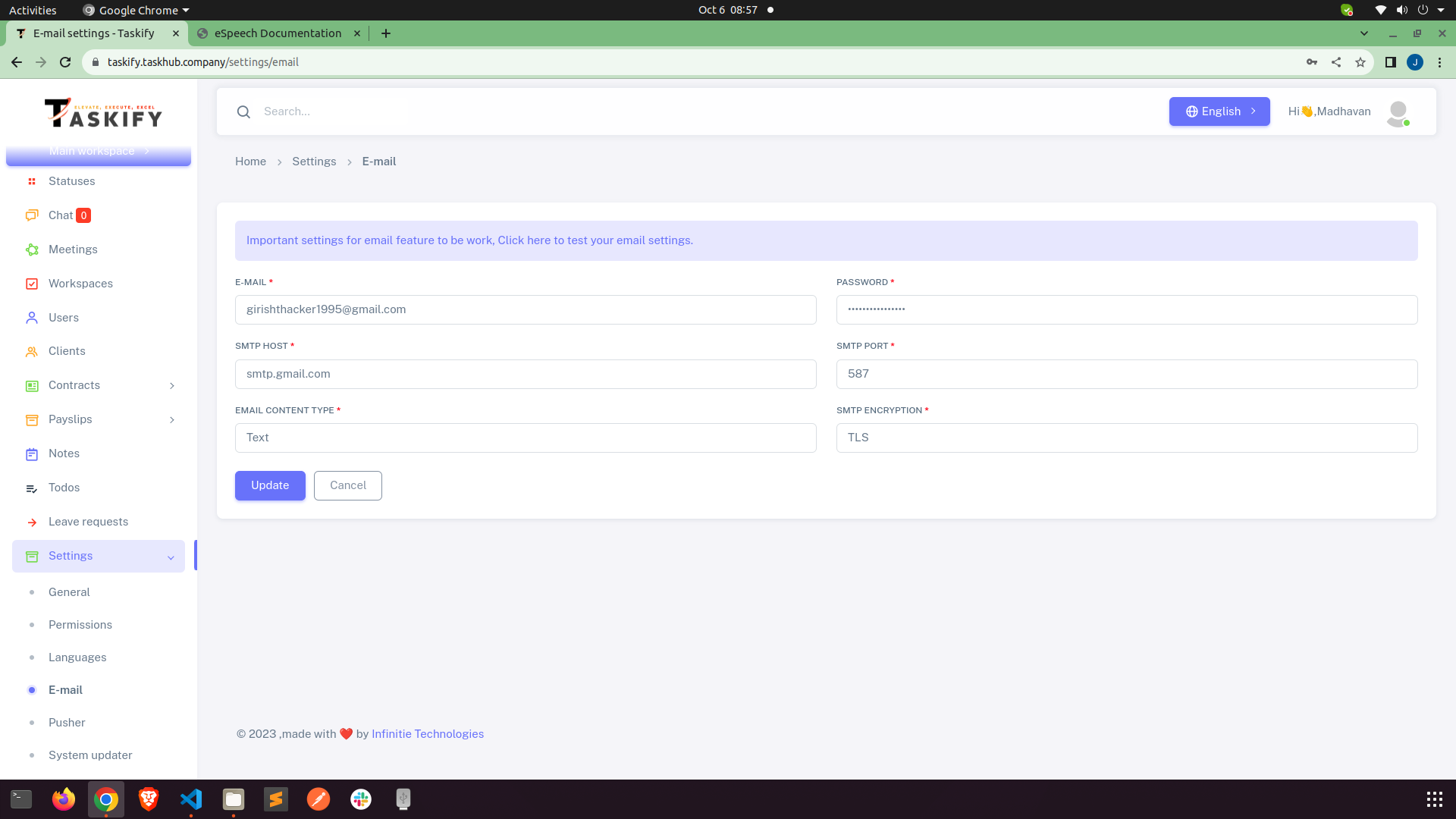
Now go to email setting. Without email setting email functionality will not work.
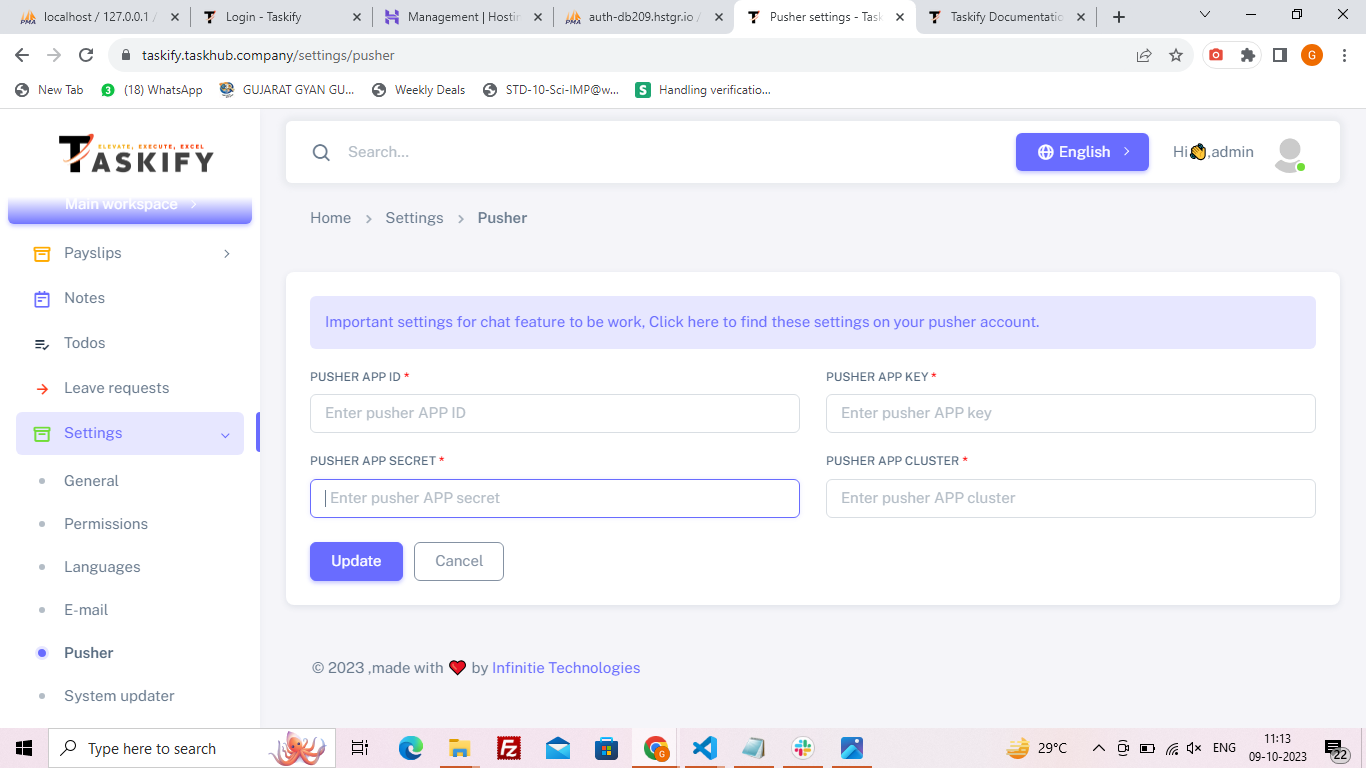
Now go to pusher setting. Without pusher setting chat functionality will not work.
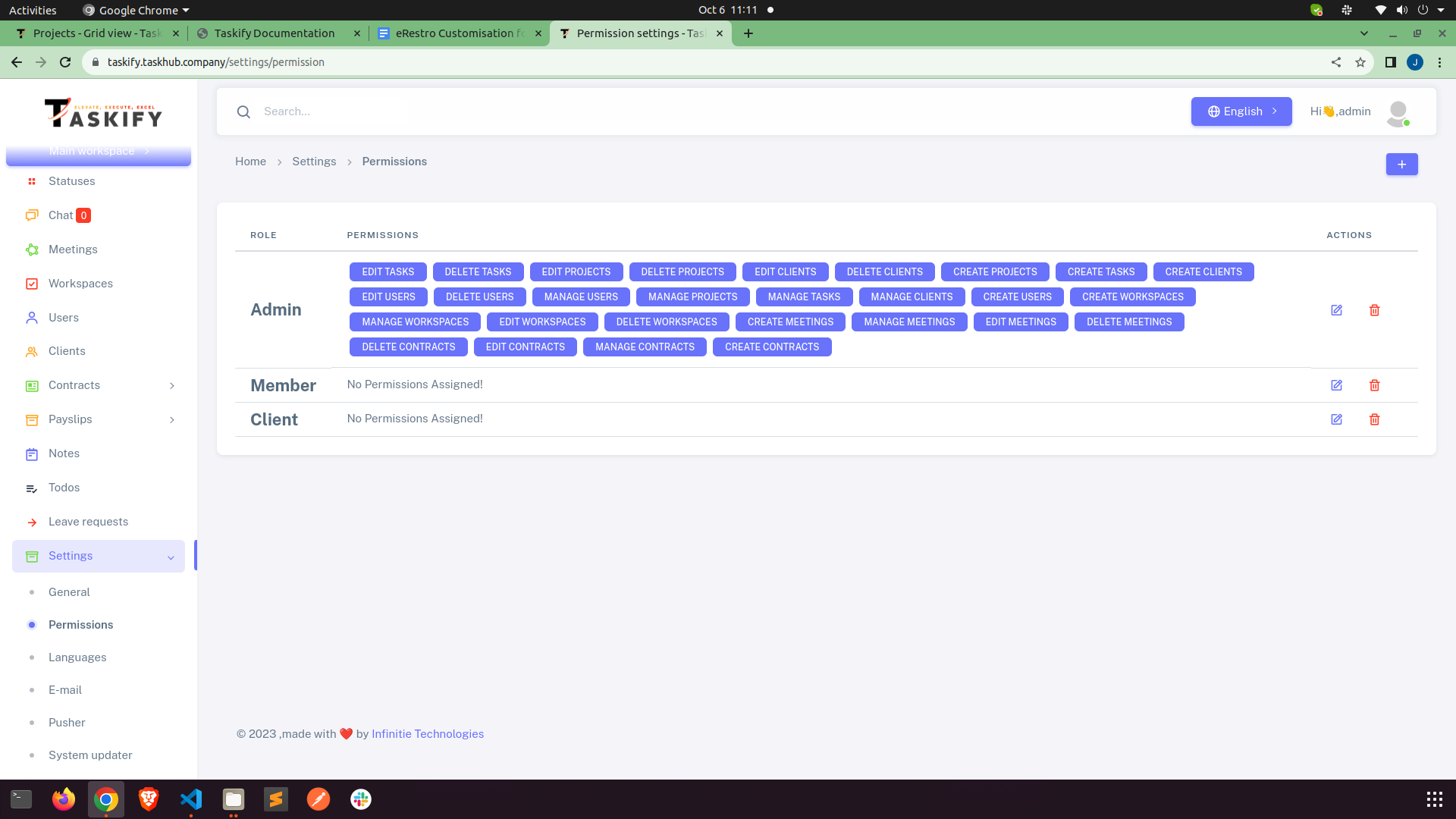
User Permission
Admin always have all the permission. Here you can set permissions for members and clients.
Auto updater
How to use auto updater to update system from current version to next version.
NOTE : Make sure you update system in sequence. Like if you have current version 1.0.0 and
you
want to update this version to 1.0.5 then you can't update it directly. You must have to
update in sequence like first update version 1.0.1 then 1.0.2 and 1.0.3 and so on.
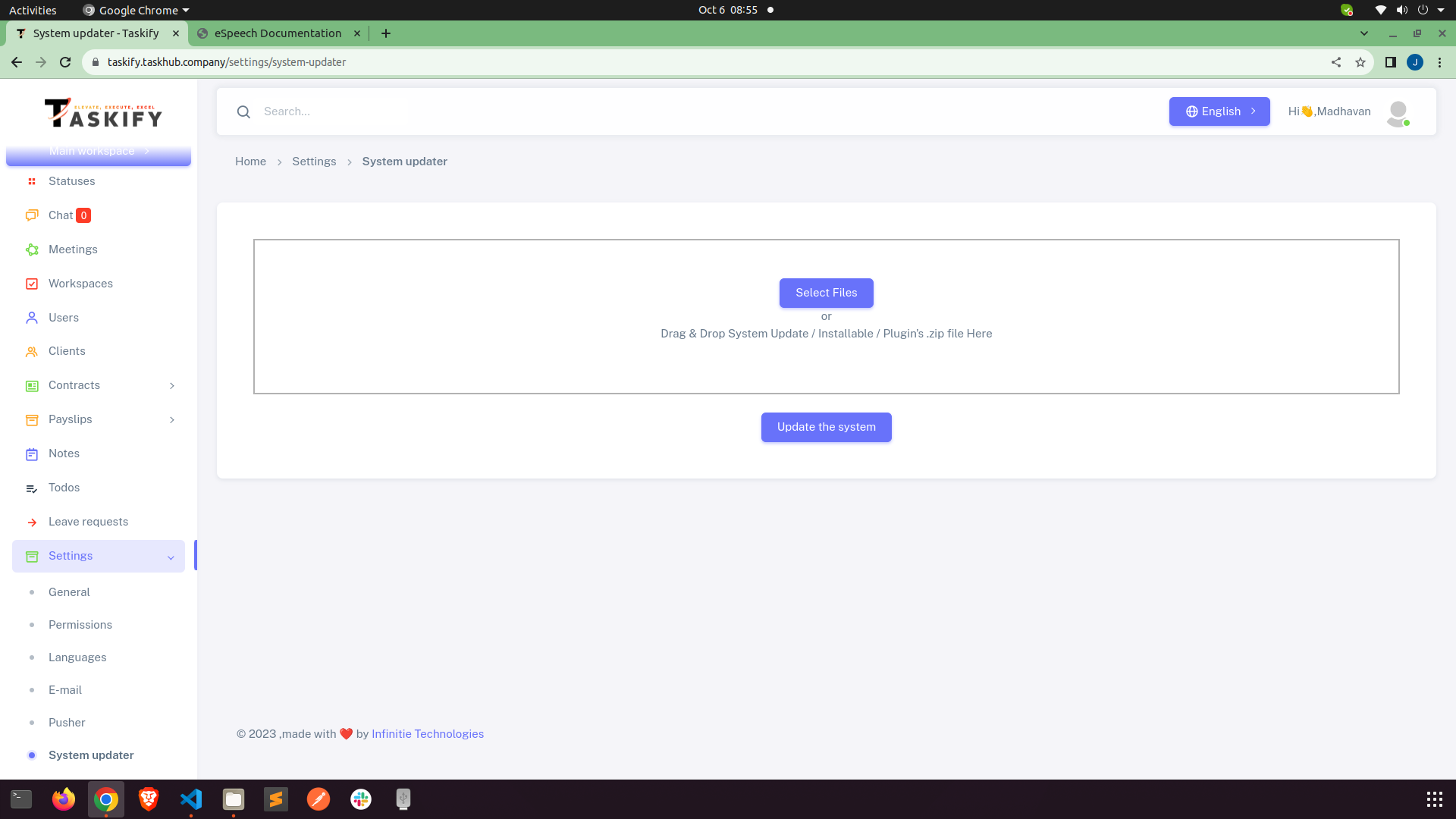
Only two simple step will update your system.
-
Find and download update.zip folder from the downloaded package when ever new update
arrives.
-
Upload update.zip folder at place shown in below image and click Update Now. that's all
your system is now updated.
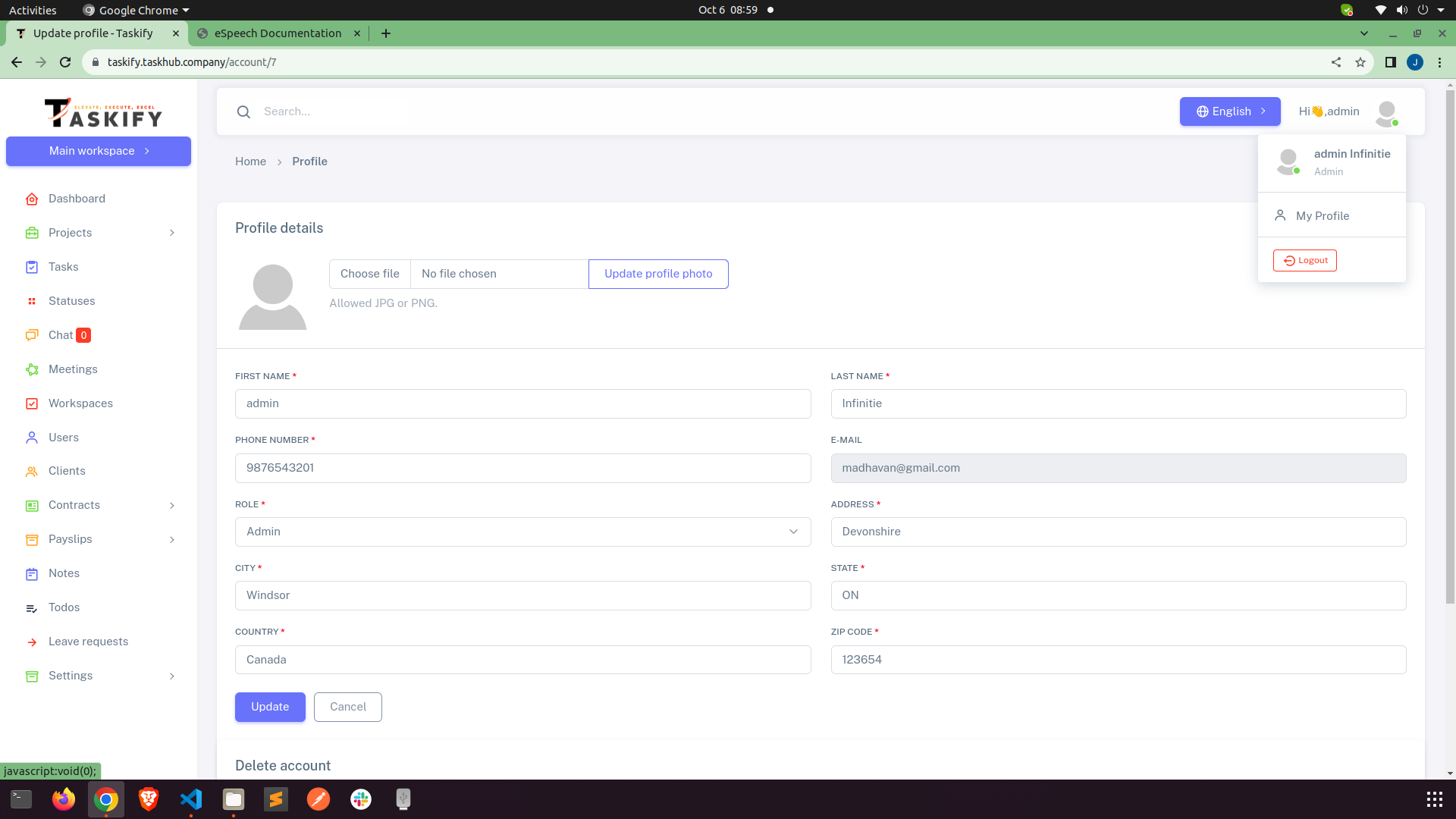
Profile
Click at top right corner on your name. Then select profile from the dropdown and update own
profile.
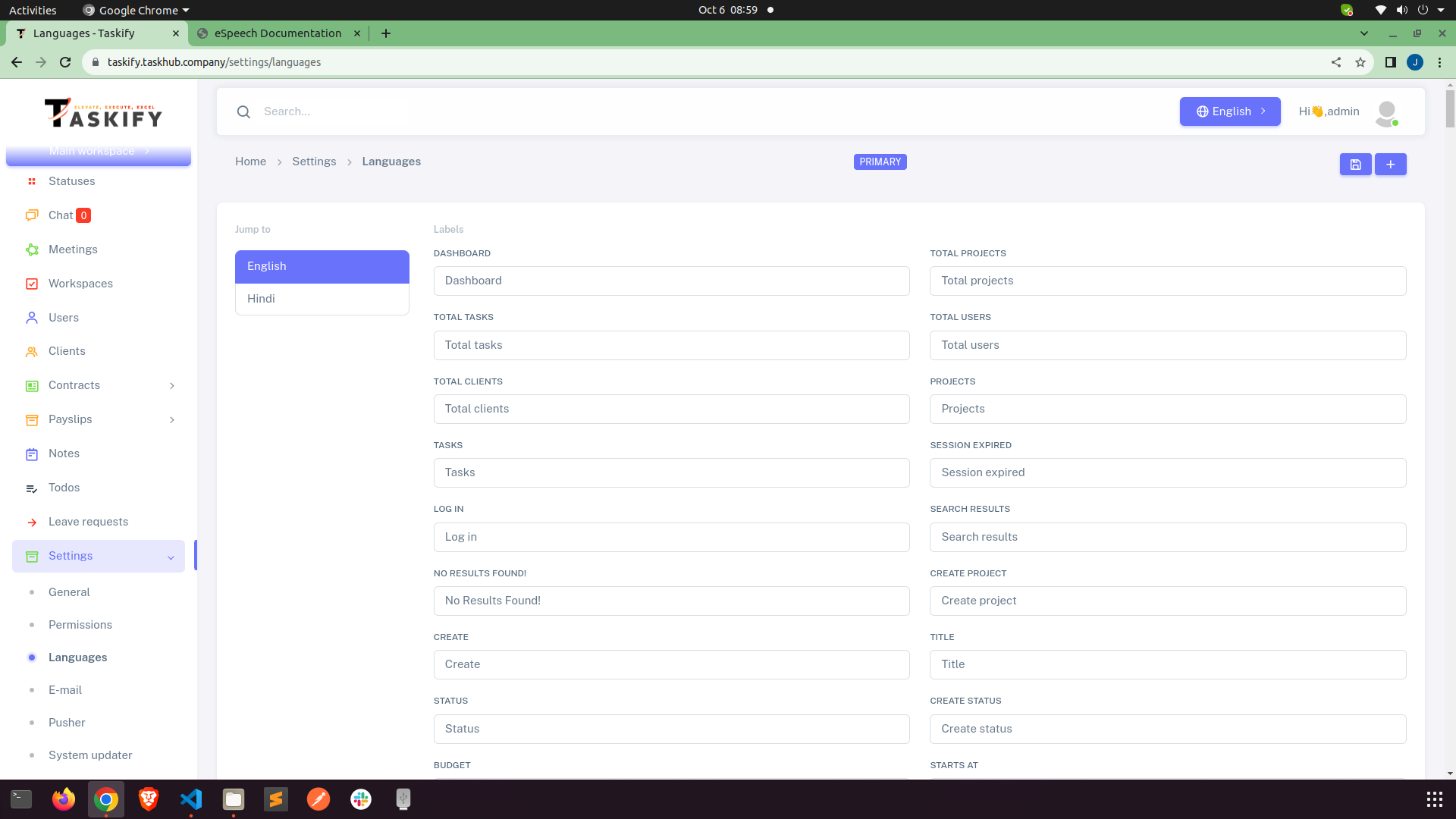
Manage Languages
Create and Manage Languages.
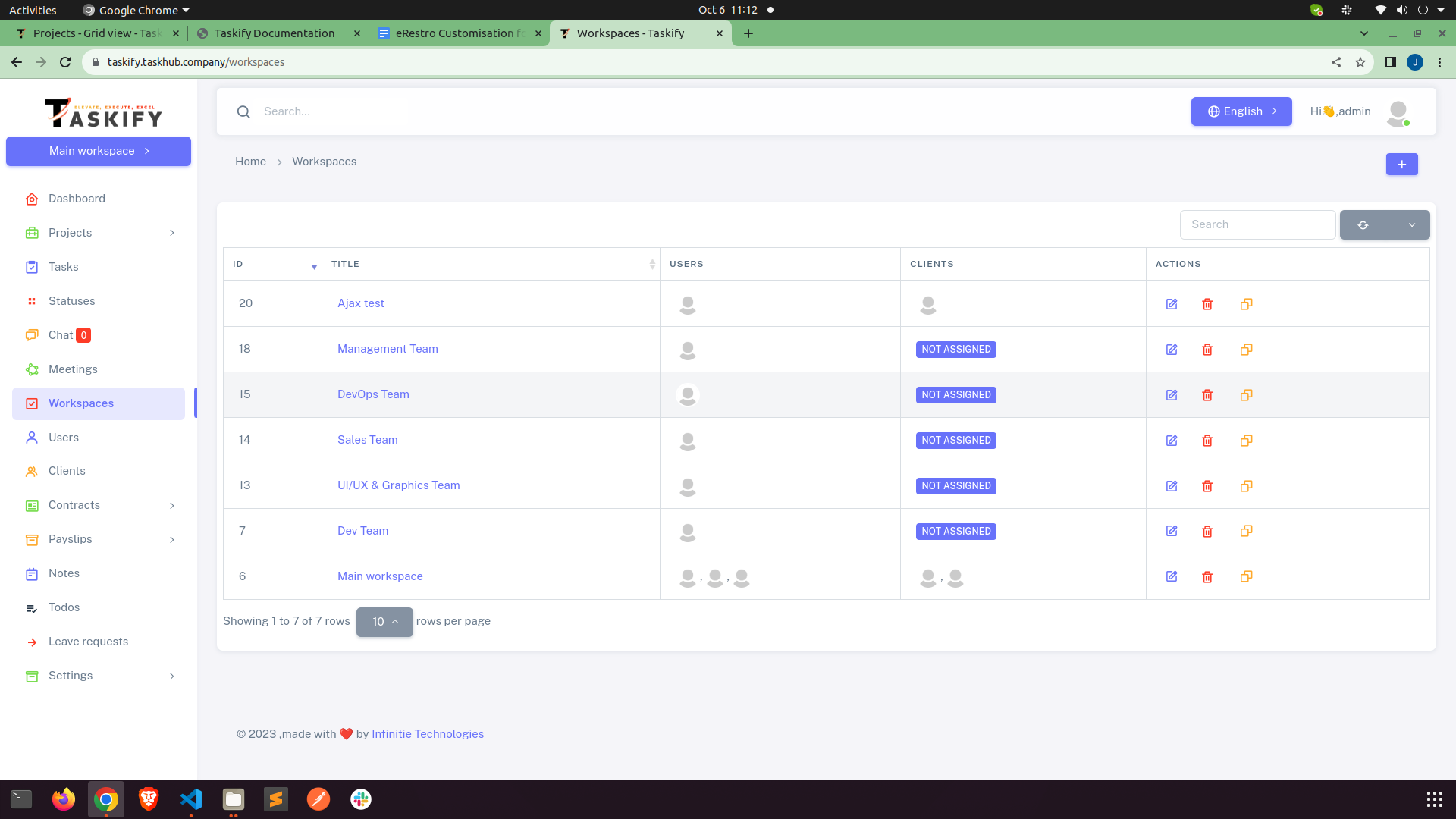
Manage Workspace
You can create new workspace from header bar and remove your self from any workspace. All
the
workspace will be listed in header bar and you can switch between them by click on them.
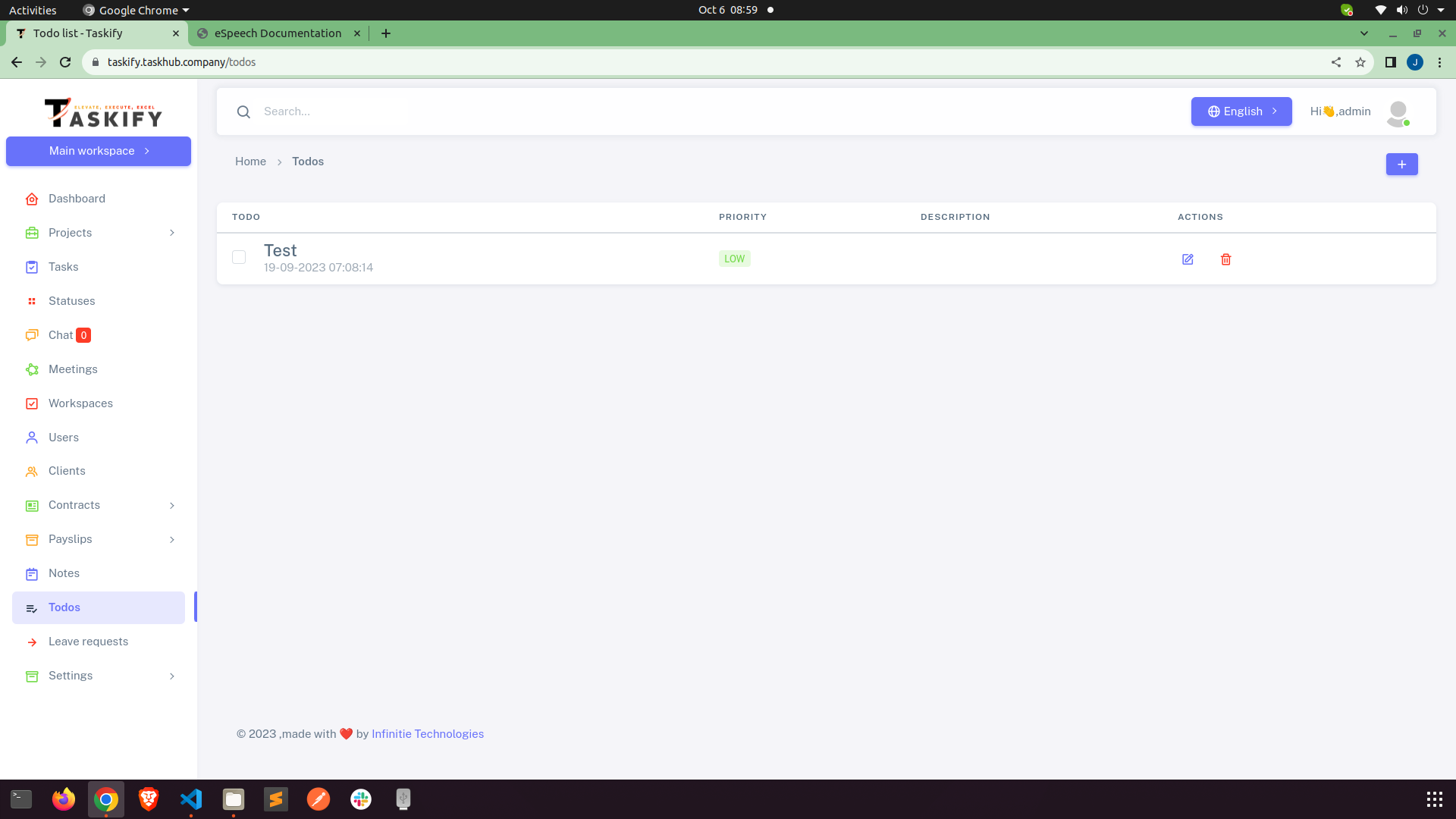
Todos
You can add, update, delete check and uncheck your todos.
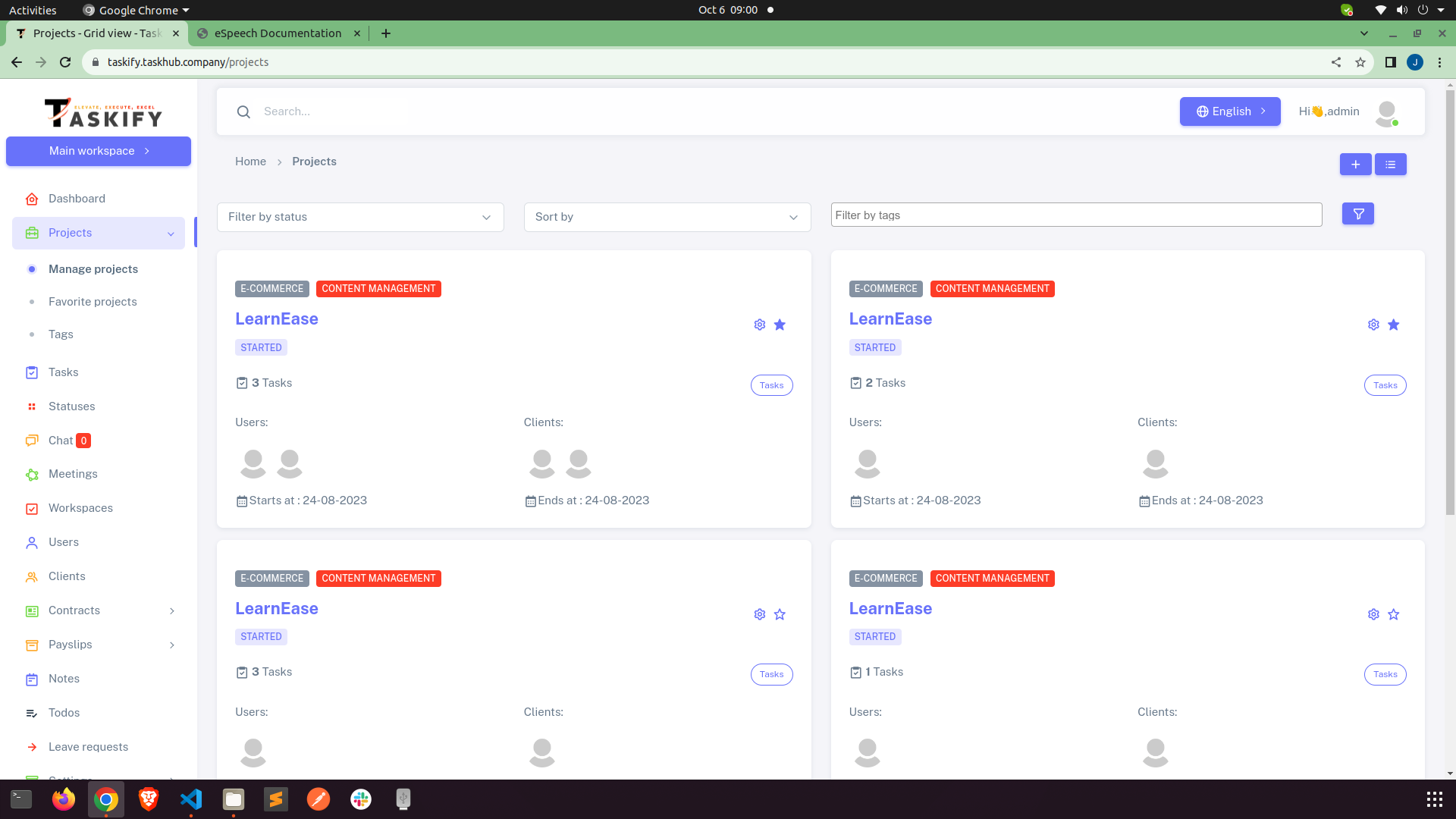
Manage Projects
All the project will be listed here. You can create, update and delete project from here.
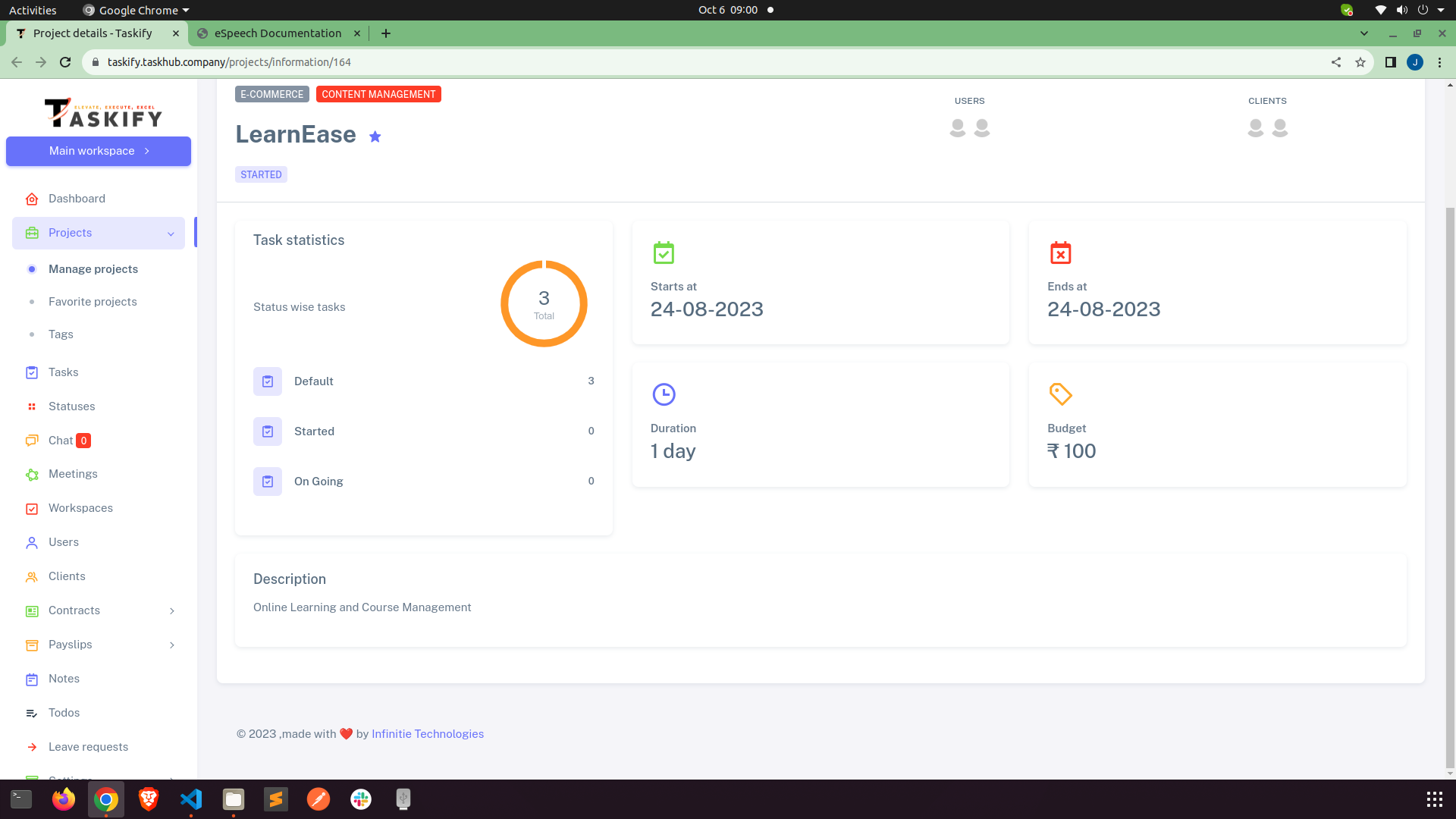
Details page of project all the details about that specific project will be shown here. On
this
page you can create milestones, tasks for project and also upload files related to the
projects.
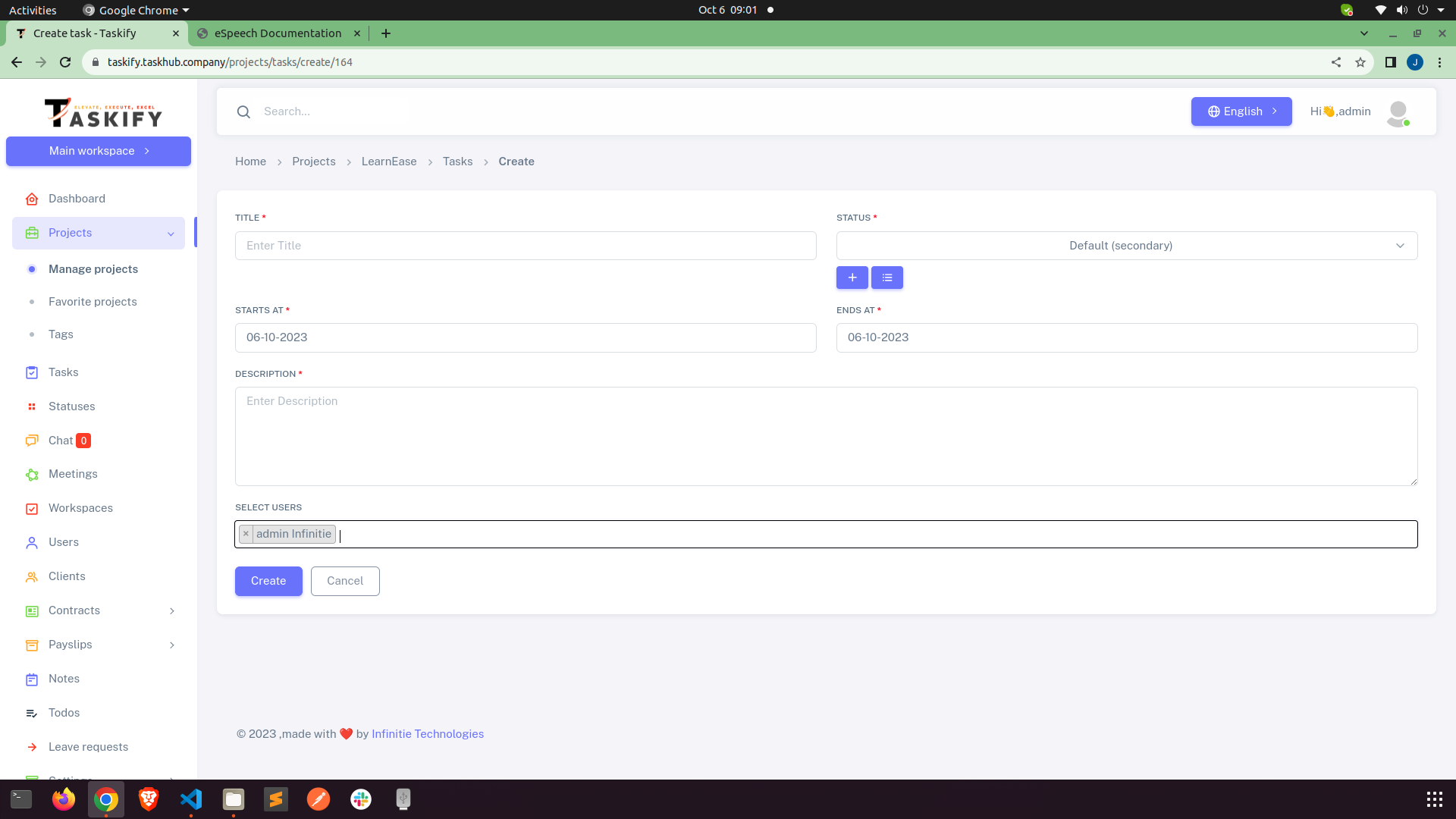
This is the page where you can create, update, delete tasks of the project and assing them to
any
user. You and user can drag and drop task in the process queue.
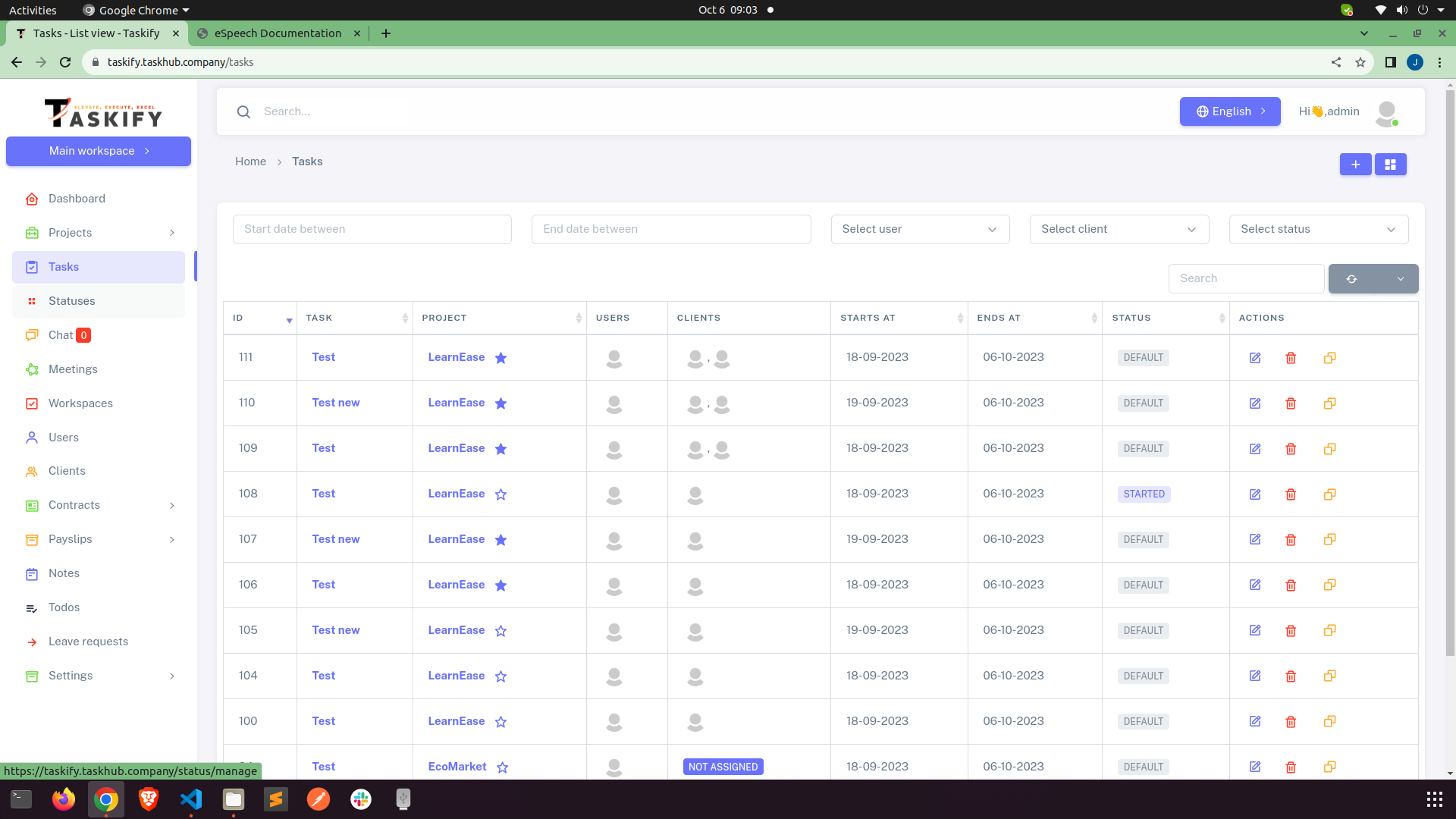
Tasks
You can view add, update and delete your project tasks.
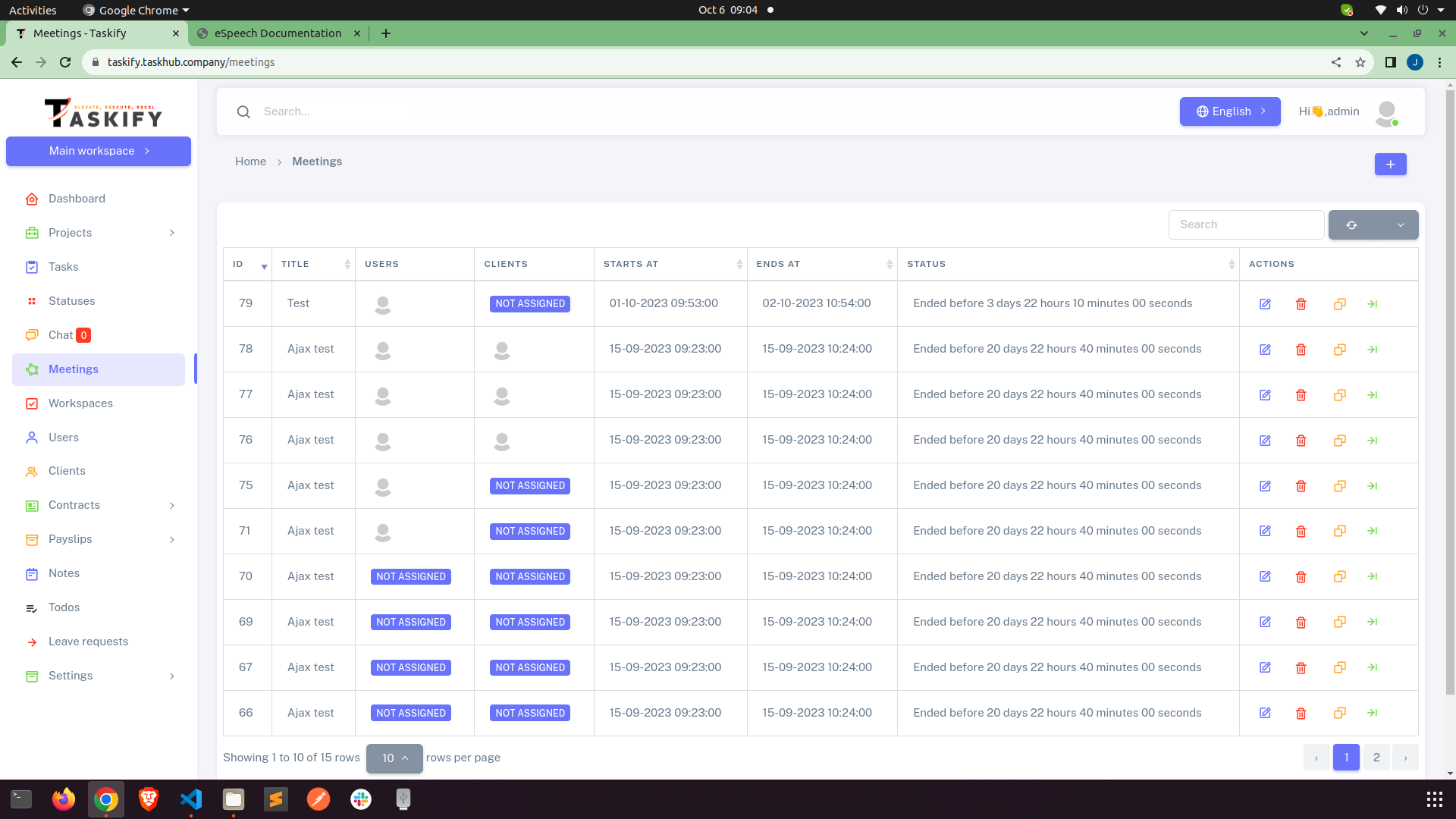
Meetings
You can view add, update and delete Meetings with your clients and team members for join
meetings.
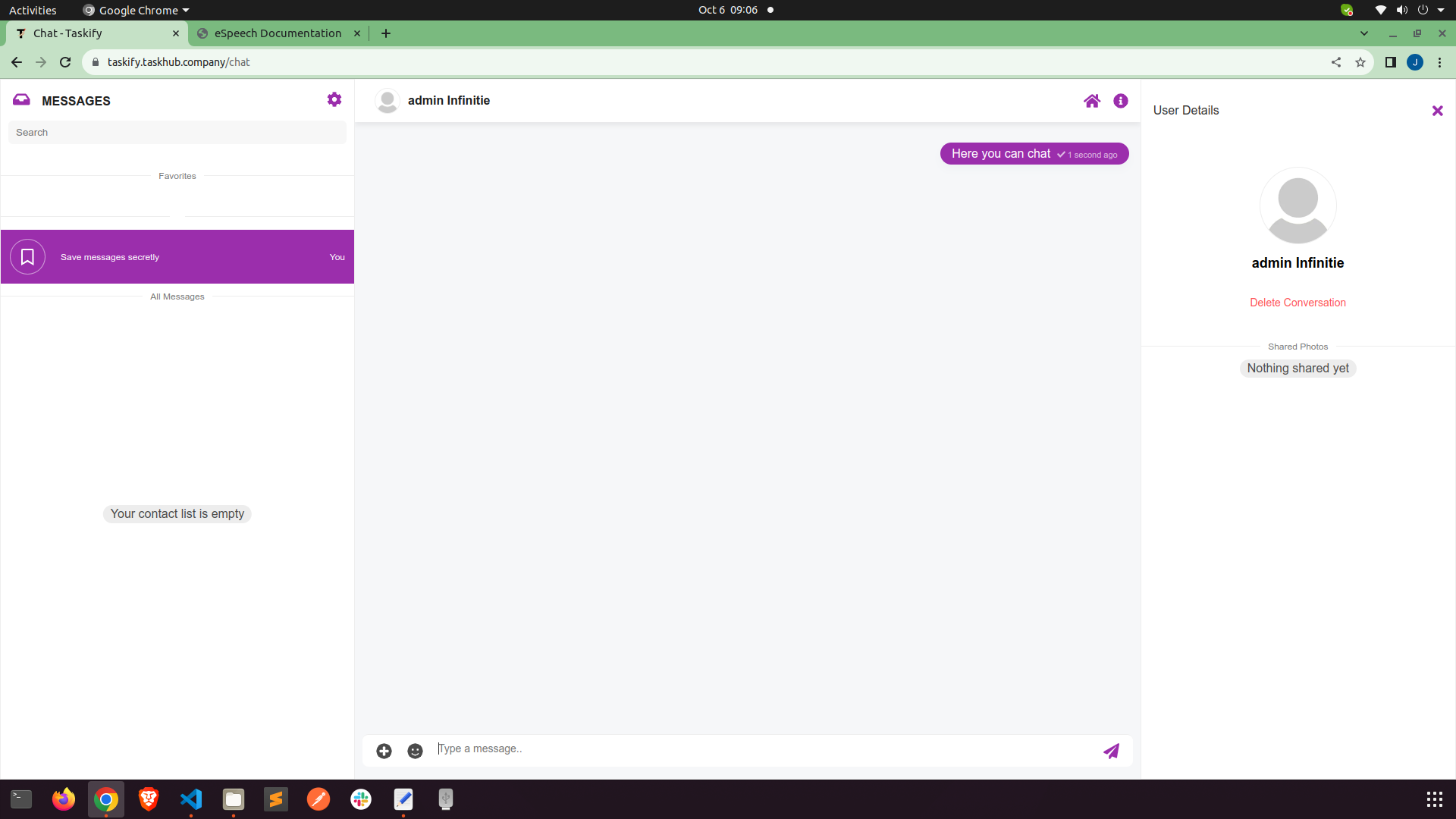
Chat
Here you can communicate with your workspace memebers. This chat system only works if Web
FCM
settings is saved. All the users of your workspace will be listed here. Also you can create
groups
Manage Users
Here you can Add, View, Edit & Delete users from worspace.
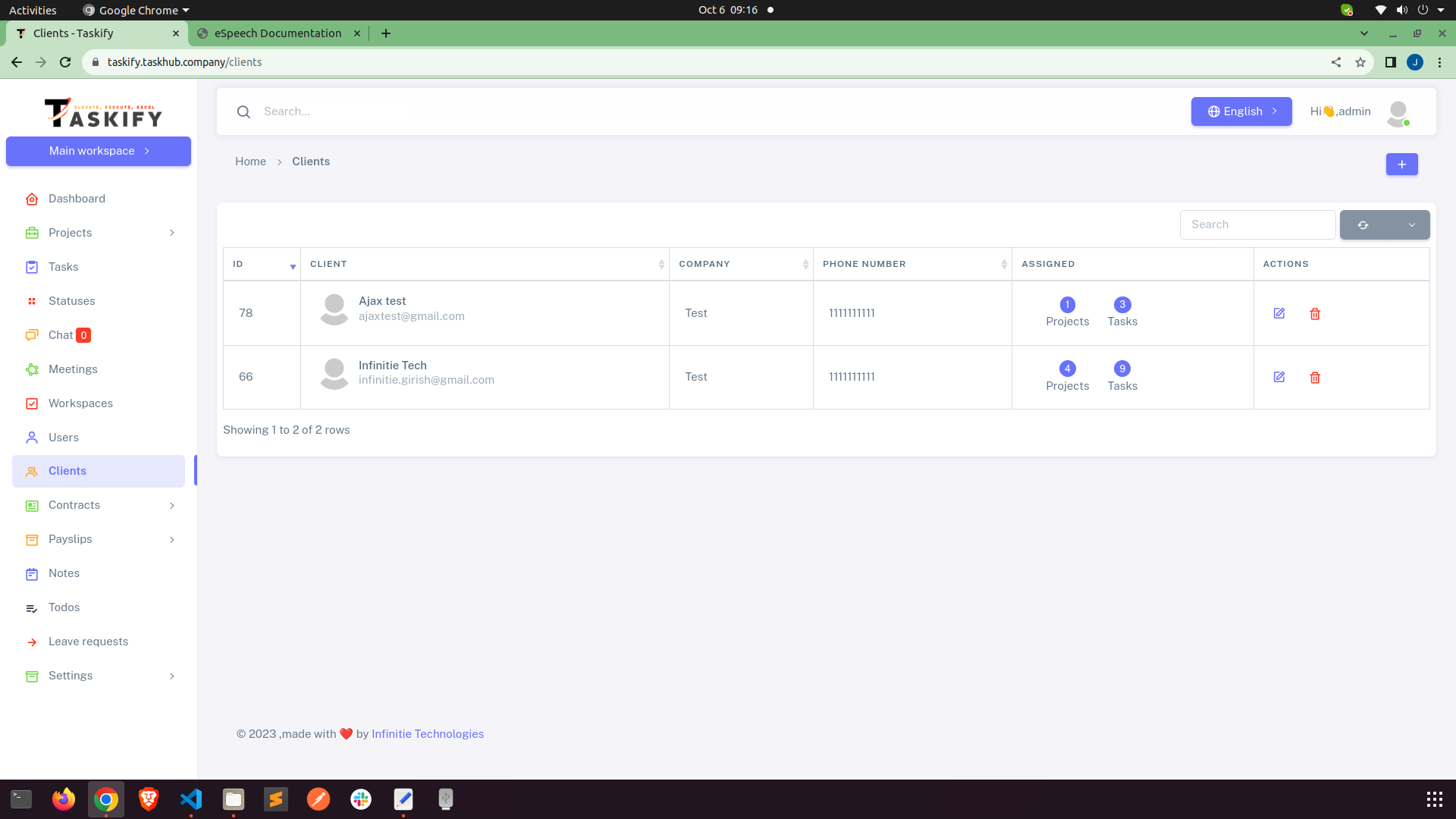
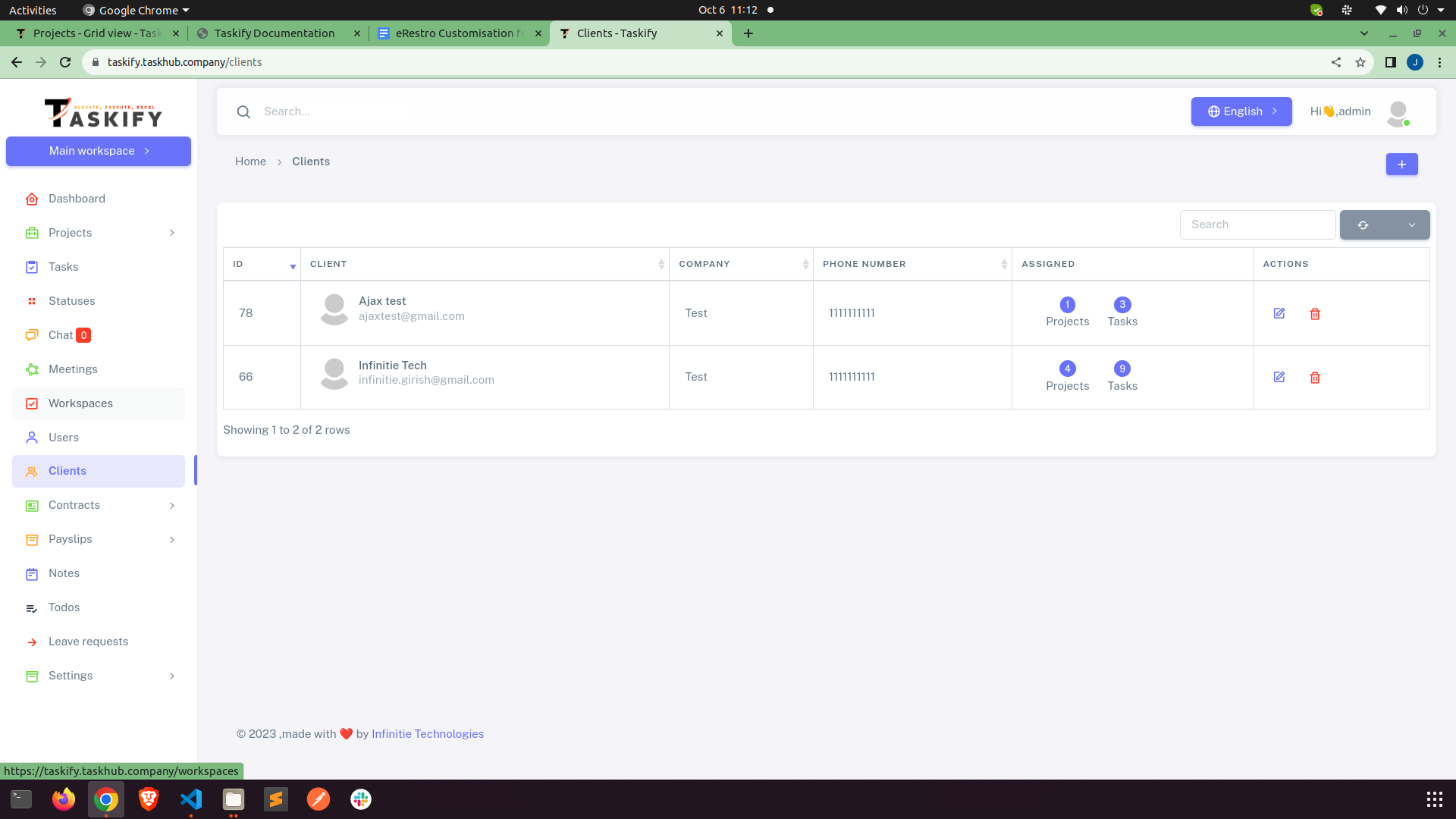
clients
Here you can Add, View, Edit & Delete Clients from worspace.
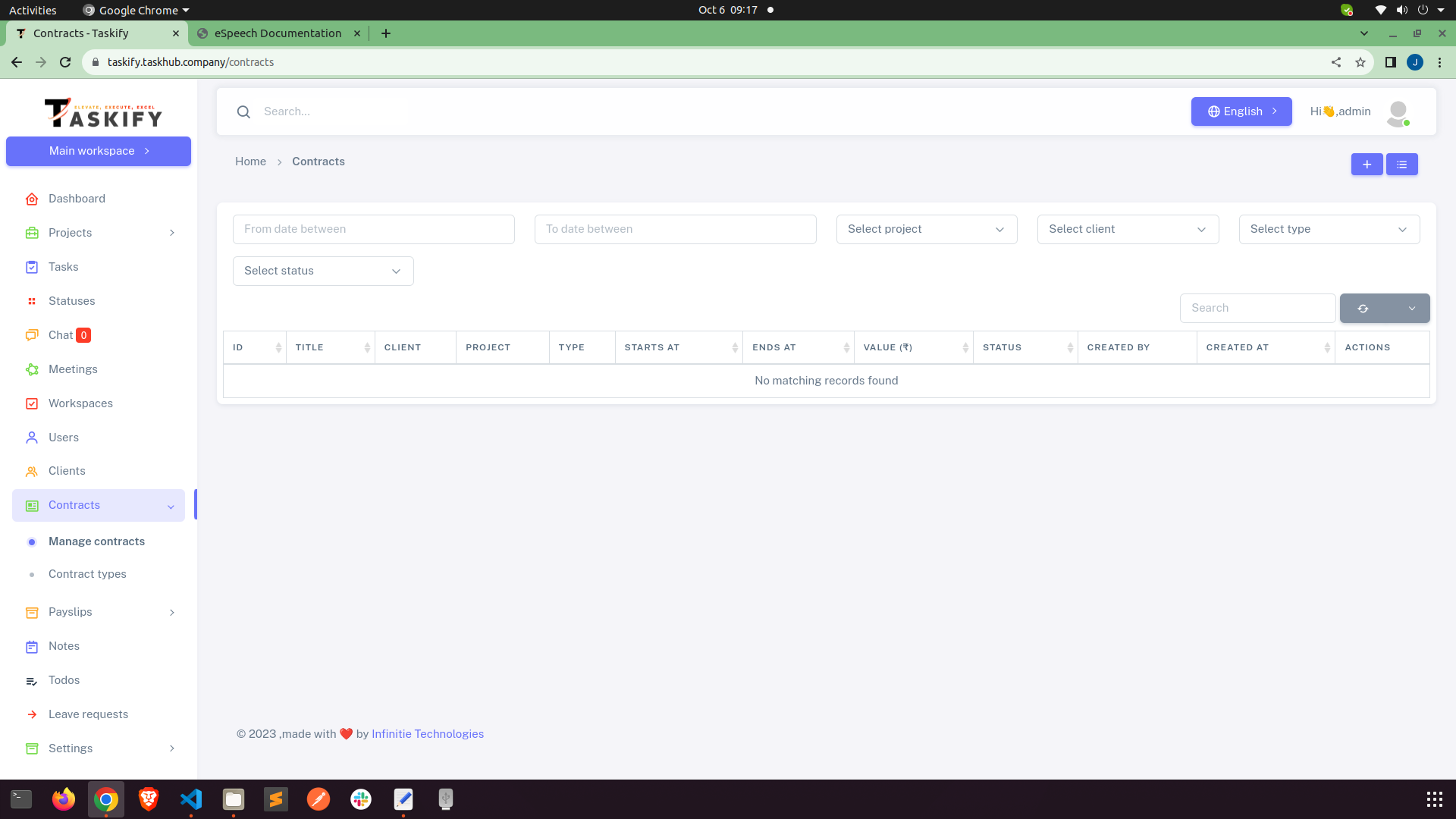
Contracts
Here you can Add, View, Edit & Delete Contracts from worspace.
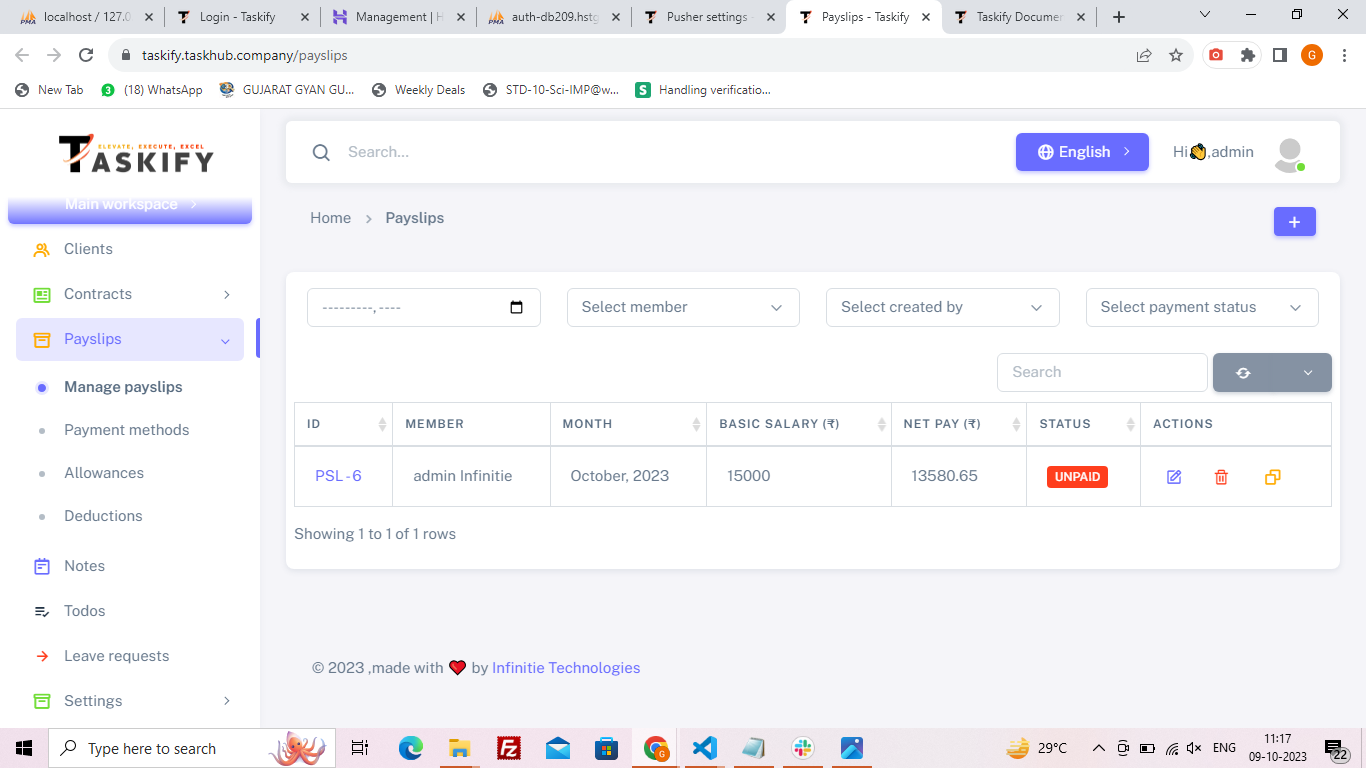
Payslips
Here you can Add, View, Edit & Delete payslips, payment methods, allowances and deductions
for worspace.
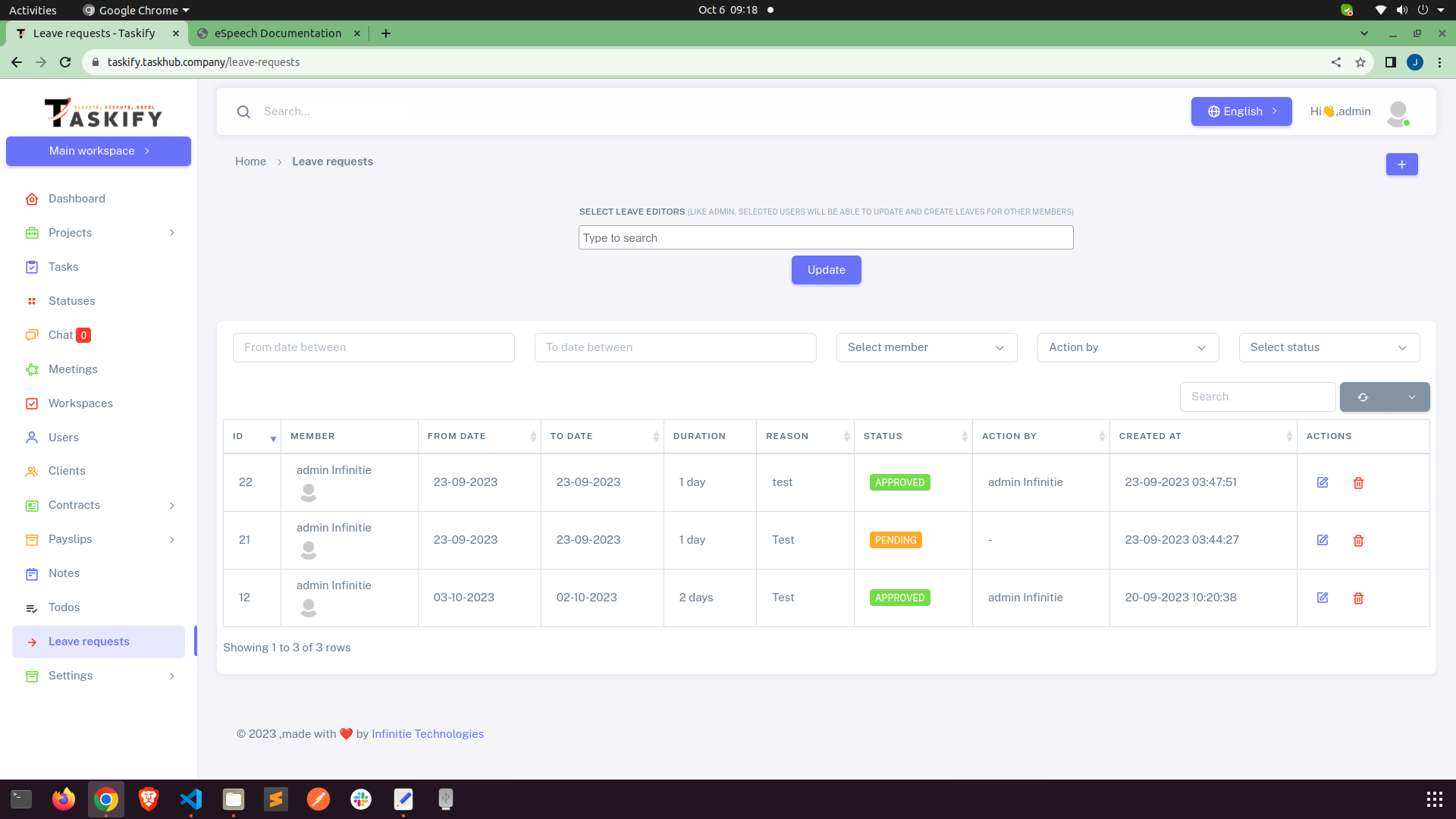
Leave Requests
Here admin and manage leave requests coming from workspace users.
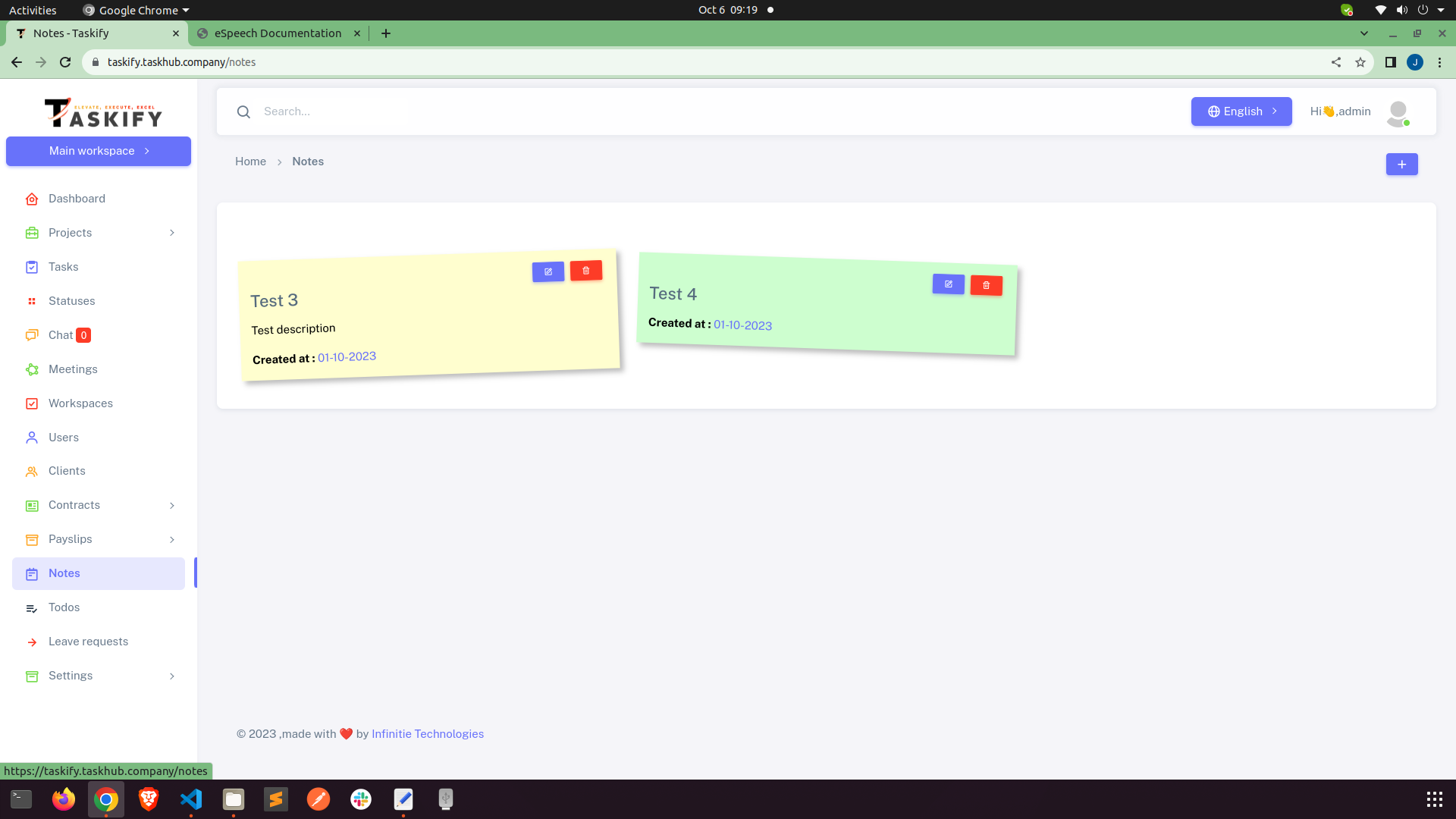
Manage Notes
This is the place where you can leave you notes for yourself. You can add, update, delete
your
notes.